Manual Linux Server Backup with LVM Snapshots and dd
Introduction
This guide documents a real-world backup process for Linux servers using LVM snapshots and the dd command. While automated tools exist, understanding the manual process provides deep insight into how backups truly work and gives complete control over the backup process.
What You'll Learn:
- Creating LVM snapshots for consistent backups
- Using
ddto create bootable disk images - Proper backup organization
- Disaster recovery procedures
Understanding the Strategy
The Consistency Problem
Backing up a live system risks data corruption when files are copied mid-write:
LVM Snapshot Solution
LVM snapshots create a frozen point-in-time copy instantly:
Benefits:
- ✅ Consistent point-in-time backup
- ✅ ~30 second downtime only
- ✅ System operational during backup
- ✅ No corruption risk
System Overview
Example Configuration:
Space Requirements:
For our example: 214GB × 0.15 + 800GB × 0.15 ≈ 90GB needed
Backup Process
Phase 1: Preparation
# Identify drive
lsblk -o NAME,SIZE,MODEL,VENDOR

# Mount
sudo mkdir -p /mnt/backup
sudo mount /dev/sdc1 /mnt/backup

# Create structure
TIMESTAMP=$(date +%Y%m%d_%H%M%S)
sudo mkdir -p /mnt/backup/servers/flex/${TIMESTAMP}
Phase 2: Create Snapshots
# Sync filesystem
sudo sync; sudo sync; sudo sync

# Stop docker / other services for some time(optional but recommended)
sudo systemctl stop docker.service
sudo systemctl stop docker.socket

# Create snapshots
sudo lvcreate -L 40G -s -n ubuntu-lv-snap /dev/ubuntu-vg/ubuntu-lv
sudo lvcreate -L 50G -s -n TimeMachine-snap /dev/ubuntu-vg/TimeMachine

# Restart services (system back online!)
sudo systemctl start docker.service
sudo systemctl start docker.socket
Timeline:
- Services stop: 5 seconds
- Create snapshots: < 1 second
- Services restart: 10-20 seconds
- Total downtime: ~30 seconds
Phase 3: Backup
BACKUP_DIR="/mnt/backup/servers/flex/${TIMESTAMP}"

# EFI partition
sudo dd if=/dev/sdb1 bs=4M status=progress 2>&1 | \
  gzip -1 | sudo tee ${BACKUP_DIR}/efi.img.gz > /dev/null

# Boot partition
sudo dd if=/dev/sdb2 bs=4M status=progress 2>&1 | \
  gzip -1 | sudo tee ${BACKUP_DIR}/boot.img.gz > /dev/null

# Root snapshot (45-60 min)
sudo dd if=/dev/ubuntu-vg/ubuntu-lv-snap bs=4M status=progress 2>&1 | \
  gzip -1 | sudo tee ${BACKUP_DIR}/root.img.gz > /dev/null

# Data snapshot (3-4 hours)
sudo dd if=/dev/ubuntu-vg/TimeMachine-snap bs=4M status=progress 2>&1 | \
  gzip -1 | sudo tee ${BACKUP_DIR}/flex.img.gz > /dev/null
Use screen for long operations:
screen -S backup
# Run command
# Detach: Ctrl+A then D
# Reattach: screen -r backup
Phase 4: Cleanup
# Save system info
sudo fdisk -l /dev/sdb | sudo tee ${BACKUP_DIR}/diskinfo.txt > /dev/null
sudo pvdisplay | sudo tee -a ${BACKUP_DIR}/diskinfo.txt > /dev/null
sudo vgdisplay | sudo tee -a ${BACKUP_DIR}/diskinfo.txt > /dev/null
sudo lvdisplay | sudo tee -a ${BACKUP_DIR}/diskinfo.txt > /dev/null

# Remove snapshots
sudo lvremove -f /dev/ubuntu-vg/ubuntu-lv-snap
sudo lvremove -f /dev/ubuntu-vg/TimeMachine-snap

# Create checksums
cd ${BACKUP_DIR}
sha256sum *.gz | sudo tee -a checksums.sha256

# Unmount the backup drive
sudo umount /mnt/backup
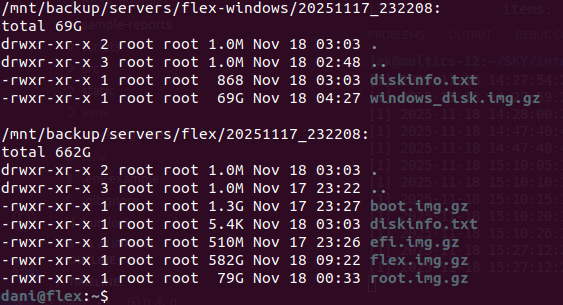
Final Structure:
/mnt/backup/servers/flex/20251117_232208/
├── efi.img.gz (195MB)
├── boot.img.gz (387MB)
├── root.img.gz (98GB)
├── flex.img.gz (312GB)
├── diskinfo.txt
├── RESTORE.sh
└── checksums.sha256
Restoration
Quick Restore Process
- Boot from Ubuntu Live USB
- Mount backup drive
- Run restore script:
cd /mnt/backup/servers/flex/20251117_232208/
sudo ./RESTORE.sh
# Type 'YES' to confirm
The script automatically:
- Wipes target disk
- Recreates partitions
- Restores all images
- Sets up LVM
- Installs GRUB
- Makes system bootable
Restoration time: 3-4 hours
Automated Solutions
For production environments, consider these free/open-source tools:
Restic - Modern incremental backups with encryption and deduplication
Borg - Extreme deduplication for space efficiency
ReaR - Automated bare-metal disaster recovery
Bacula - Enterprise client-server backup system
Recommended Strategy:
Conclusion
Key Takeaways:
- LVM snapshots enable consistent backups with minimal downtime
- dd creates true bootable disk images
- Manual process teaches fundamentals applicable to all backup methods
- Automation is valuable for production, but understand the foundation first
3-2-1 Backup Rule:
- 3 copies of data
- 2 different media types
- 1 offsite copy
Next Steps:
- Perform your first manual backup
- Test restoration in VM
- Implement automated daily backups
- Schedule regular DR drills
The best backup is one that works when you need it. Test your backups regularly!